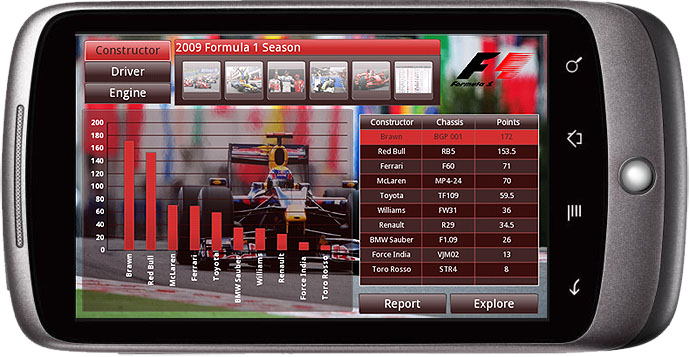

The latest release of Android, v2.2 (“Froyo”) supports the Adobe flash technology used by Xcelsius (now called Dashboard Design) and SAP BusinessObjects Explorer. So now you can access your dashboards, reports, and exploration spaces directly from your mobile device without requiring a separate application (e.g. as you do for the iPhone and iPad).
It also means you can reuse all the effort you’ve put into developing Xcelsius dashboards and make them into slick, use-them-on-the-fly interfaces for your road warriors. Here’s a quick video demonstration of my Google Nexus One phone running Xcelsius, WebIntelligence, and Explorer, based on a Formula One data set (SAP is a sponsor of the Vodaphone McLaren Mercedes racing team, and the McLaren team use SAP’s PLM software).
Here’s a step-by-step picture view of the same demo:
1: open the xcelsius dashboard
(Note: the Xcelsius icon below is NOT an application that you have to install, just a shortcut to the URL, which opens in a browser)

The flash file will open up in the browser:

To make it full screen, press and hold your finger on the flash file until the bar below appears

Then click on the left-hand icon to make the flash file full screen:
From here, you can explore the dashboard, for example, press the “Driver” button:

Or the “Engine” button:

You can also “drill through” to information using the other SAP BusinessObjects products. For example, touching the “Report” button can take you directly to a Web Intelligence report (this won’t work with the link above, because it’s a report only available to my account – the link takes you to the generic bi.ondemand.com page, and if you’re previously logged on – you can sign up for a free account – it will take you directly to your data sets, reports, etc.)

This report is rendered in HTML, and full interactable – all drill-downs, etc. will work, and you can use the standard “pinch” gestures to zoom into part of the report, scroll around, etc.:

Click on the “back” arrow on the phone (left-most icon on the bottom row of buttons on the phone) to get back to the previous dashboard (note, I occasionally came across a flash bug here, where the top bar would still appear, throwing off the tracking location of your finger. If this happens, hold your finger until the full screen icon appears, then click below it to get back to full screen)
Next, click on the “Explore button” to open a new pop-up window (you need to have enabled pop-ups in your browser options, or nothing will happen), and it will load an Explorer session with Formula One data (why do this via a pop-up? to make sure that the screen proportions are correct for the next step):
(Note: this data is stored on a corporate SAP server, but you can do the same thing using data you’ve uploaded to your free bi.ondemand.com account)

As before, hold down your finger and make the flash full screen:

This interface requires precision to use, but with a bit of practice, it’s feasible. Here, for example, I click on the pie chart icon to change the chart type:

Next, I click on the “Advanced” section under “Nationality” to get this window, and I chose “British”:

And by clicking on the little arrows to the left of the “Items to Select” section, you can expand it:

Or you can click on the little arrow to the left of “Visualize the data” to expand that part:

A few best-practice tips if you’re interested in recreating a demo like this:
- The screen size for the Google Nexus One is 480×800. When I designed the dashboard, I found I had to make the buttons and fonts extra-big in order to make them useable on the phone.
- To get a flash file to show full screen on your Android phone, simply press and hold. A bar will appear with a button to make the flash file full screen.
- Explorer automatically resizes to the available browser size available. Unfortunately, this means that even when you make it full screen, it doesn’t have the right proportions to fill the screen. I got around this by using a popup window set to 480×800, and enabling pop ups in the phone’s browser.
- Obviously, all this will be a lot easier as a new range of Android devices with larger screen sizes become more widely available, such as the French Archos 7 tablet
So. There you have it: Xcelsius, Web Intelligence and Explorer all running smoothly on your mobile device, no apps required!
Please share your best BusinessObjects-for-Android dashboards, reports and hints and tips, and I’ll put them in a follow-up post!
Comments
24 responses to “Xcelsius Dashboards on Your Android Mobile Phone”
[…] Flash-enabled smartphone’s browser or on any conventional computer. Elliott also provides a step-by-step guide to using SAP BusinessObjects applications on Android […]
Hi Timo,
you have uploaded the dataset on bi.ondemand.com.
It is possible to upload the dataset on the local server and to access them with an Android device.
Thank you!
Best regards.
I assume you mean “is it possible”? The answer is yes (but the BusinessObjects platform needs to be installed)
[…] we want to use BusinessObjects Mobile on Android device. Here we found a tutorial with a SAP onDemand solution. https://timoelliott.com/blog/2010/07/xcelsius-dashboards-on-your-android-mobile-phone.html […]
Very nice work! I am going to get either an iPad or Andriod pad for demonstrating BOBJ. Are there any pros and cons of one versus the other now or down the road?
Hi Timo,
Can we configure SAP BO Mobile XI 3.1 SP3 on Android devices?
Timo -How did you get the Xcelsius file to run the data connections without authenticating with the corporate BO server?
[…] than projects in SAP Code Exchange can provide a good starting point. This blog on using SAP Xcelsius on Andorid phone, also gives some idea of potential for Mobile content on Android. Using OCR cloud service to […]
Hi
I have checked your link so with exact screen size i need to view my xcelsius report. Please provide me your valuable suggestion.
Thanks
Sorry, I’m not sure I understand the question. In general, for all Xcelsius questions, please consult the official forum: http://forums.sdn.sap.com/forum.jspa?forumID=302&start=0
[…] The device runs Android 2.2, which supports Adobe Flash, so the first thing I tried was a couple of dashboards suitable for executives on the run, built using BusinessObjects Dashboard (formerly Xcelsius). First, the same Formula 1 example that I previously tried out on my Google Nexus One phone. […]
[…] The device runs Android 2.2, which supports Adobe Flash, so the first thing I tried was a couple of dashboards suitable for executives on the run, built using BusinessObjects Dashboard (formerly Xcelsius). First, the same Formula 1 example that I previously tried out on my Google Nexus One phone. […]
[…] dashboards should work on any device that supports the latest version of Adobe Flash (such as the Google Nexus One Phone) – although there’s currently no support for multi-touch operations (soon available in Flash, […]
[…] dashboards should work on any device that supports the latest version of Adobe Flash (such as the Google Nexus One Phone) – although there’s currently no support for multi-touch operations (soon available in Flash, […]
Hi Timo,
thank you for an example. I agree with you that all this will be a lot easier with larger screen size!
Hi Timo Elliott,
I need to view my xcelsius report in my mobile devices with exact screen size.
I have checked your link for android, kindly let me the feasibility for BlackBerry, iPhone and Windows mobiles?
Please let me your suggestion regarding this.
Unfortunately, you need to use different technology for different devices today (this is one of the advantages of the Sybase Unwired platform, recently acquired by SAP). Xcelsius (now called BusinessObjects Dashboards, btw) works with Android (only — Apple hates Flash, and Flash not yet supported on Windows Mobile). BusinessObjects mobile lets you access Web Intelligence reports from Blackberry, Symbian, and Windows Mobile. Businessobjects Explorer for iPhone/iPad lets you access Explorer data. And Android and iPhone both let you access web intelligence and/or bi.ondemand.com directly using the phone’s web browser (maybe Symbian and Windows Mobile, too — haven’t been able to check — blackberry doesn’t work…)
I was trying to open the url to the swf file on the Nexus One which is running Froyo 2.2 and get the following error – ‘Cannot download. The content is not supported on this phone’.
How do I verify if this version of the OS supports flash or not.
Thanks.
[…] your Flash-enabled smartphone’s browser or on any conventional computer. Elliott also provides a step-by-step guide to using SAP BusinessObjects applications on Android devices. Leave a comment Click here to […]
Dear Elliott,
Its interesting to see and push for BI Reports onto Mobile with great advancements in Mobile communication.
Request you to let me know what are the pre-requisites required in terms of Version of BO tools used and if SAP BI as backend system for data then which version is required to directly consume it.
This demo inspires me to tryout at my end……. 🙂
Cheers!
KP
Great demo. Perfomance seems to be very good for a mobile device and no apps to download. All delivered in the flash player.
hi Timo,
I saw an icon of xcelsius on your phone’s screen. if it is necessary to install xcelsius in my device? And as if you also showed to build a report via pole star, then it seems that i need to install the applications and where the data is from?
Katharine
Katharine,
I should have been clearer (I’ll update the blog post): there’s nothing to install on the phone. The Xcelsius icon is just a shortcut to a URL, which opens in the browser window. The data I showed in Explorer / Polestar is hosted on a corporate SAP server, but you can upload your own data set with a free account at bi.ondemand.com, and then use the Explorer interface on top of that data…
Very cool stuff! I have my concerns for Xcelsius on a mobile devices but it will be interesting to see where this goes in the future.